2026-10-15 · BillCrop Team · 6 min read
Chase overdue invoices automatically: a simple plan
How to chase overdue invoices automatically: a simple reminder schedule, 3 copy-paste late payment reminder templates, and the mistakes that cost you money.

Chasing money is boring work. It is also the work most of us skip, and then we wait.
Here is how to chase overdue invoices automatically, or as close to it as you can get. You will get one reminder schedule, three late payment reminder templates you can copy, and a short list of mistakes to avoid.
What does it mean to chase overdue invoices automatically?
It means you set the plan once, and every unpaid invoice follows it. You do not decide each time whether to send a nudge. The plan decides.
Some accounting tools can do the sending for you. Xero’s own guide tells you to set reminders for a few days before the due date and on the due date, then more after it, each one firmer than the last.
Other tools only help you send each reminder faster. Both ways work. What matters is that the plan never changes by mood.
What is a good automatic payment reminder schedule?
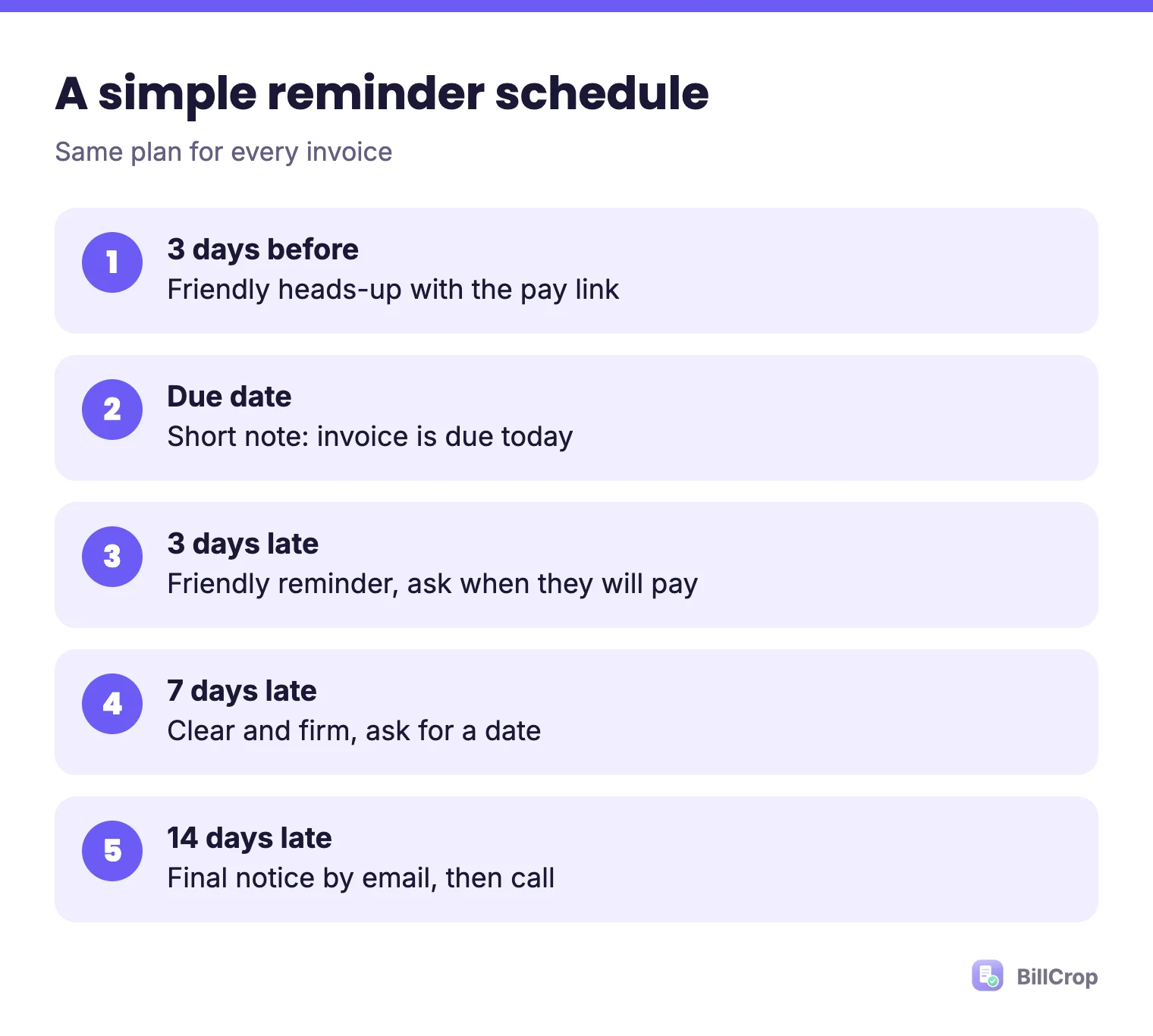
Start before the due date, then follow up at about 3, 7 and 14 days late. This is a mix of the Xero guide above and the TinyTax late payment guide, which uses day 3 for an email, day 10 for a call and day 14 for a formal notice. Xero adds that if there is no reply, you should phone within a week.
| When | What to send |
|---|---|
| 3 days before | Friendly heads-up with the pay link |
| Due date | Short note: the invoice is due today |
| 3 days late | Friendly reminder. Ask when they will pay |
| 7 days late | Clear and firm. Ask for a date |
| 14 days late | Final notice by email, then a phone call |
Change the days to fit you. A client on 30-day terms may need a lighter touch than one on 7-day terms. New to terms? See net 30 payment terms explained.
How do I write an overdue invoice reminder email?
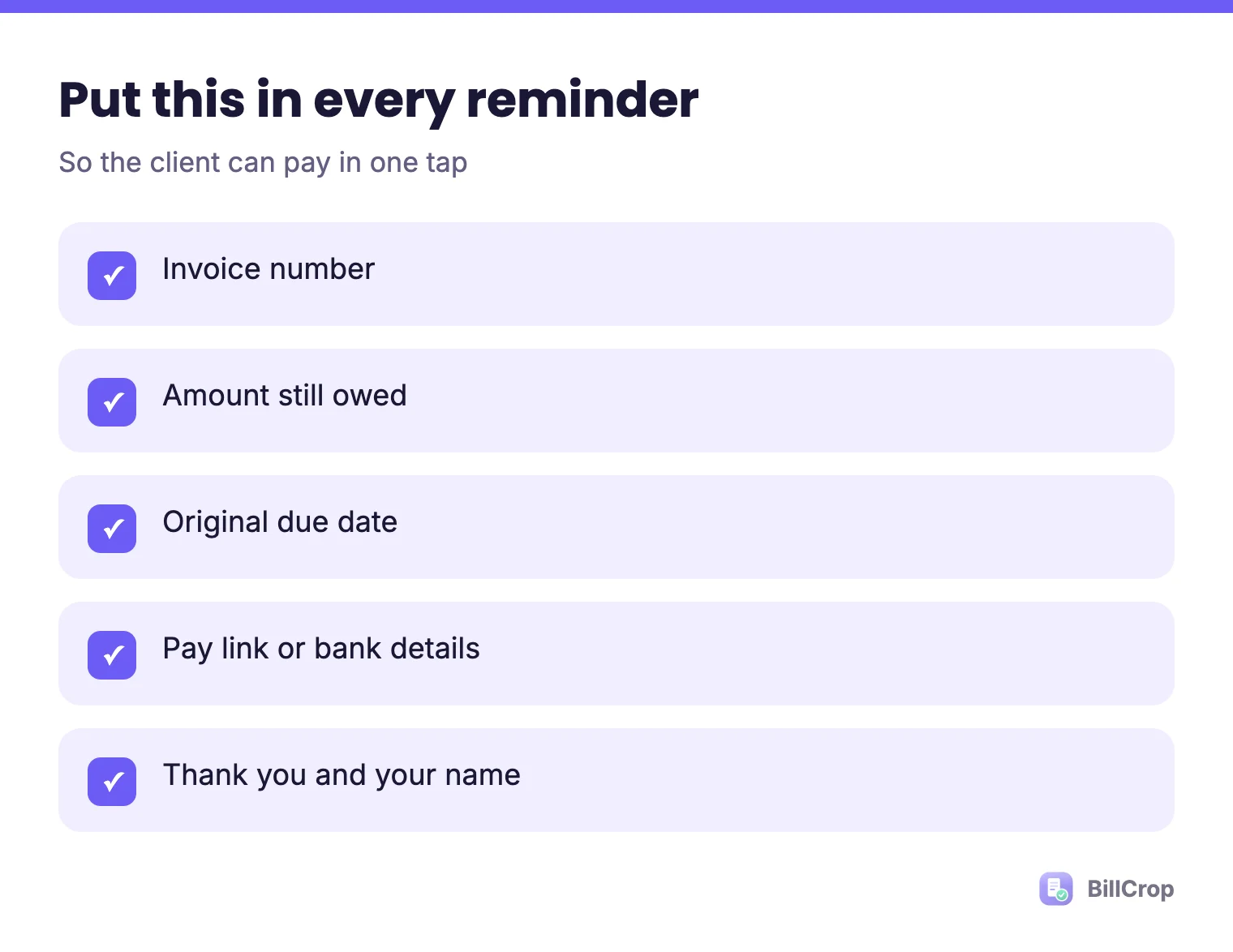
Keep it short and put the facts first. Every message needs the invoice number, the amount still owed, the due date and a way to pay.
Why the pay link? Because the client has to finish the job. If they must hunt for your bank details, the reminder sits in their inbox. Read more in the invoice details that get you paid sooner.
What is a late payment reminder template I can copy?
Use three: friendly, firm and final. Change the words in [brackets]. These work for email, and the short ones also work on WhatsApp.
Template 1: Friendly (3 days before, due date or 3 days late)
Subject: Invoice [#1024] - friendly reminder

Hi [Name],

Quick note that invoice [#1024] for [₦150,000 / $500] is due on [date].
You can pay here: [pay link]

If you have already paid, thank you, and please ignore this.

[Your name]
Template 2: Firm (7 days late)
Subject: Invoice [#1024] - payment needed

Hi [Name],

Invoice [#1024] for [₦150,000 / $500] was due on [date] and I have not
received payment yet.

Please tell me by [date] when to expect it. Pay link: [pay link]
If something on the invoice is wrong, tell me and I will fix it today.

Thank you,
[Your name]
Template 3: Final (14 days late)
Subject: Final notice - invoice [#1024]

Hi [Name],

Invoice [#1024] for [₦150,000 / $500] is now [14] days late.
Please pay by [date] using this link: [pay link]

If you cannot pay in full, reply today and we can agree a plan.
After [date] I will have to [pause work / apply the late fee we agreed].

[Your name], [Business name]
Only mention a late fee if it was in your terms. See can I charge a late fee on an invoice?
For more wording options, see our payment reminder message examples for email and WhatsApp.
How do I follow up on unpaid invoices that still get ignored?
Change the channel. After two or three emails, pick up the phone or send a WhatsApp message. A two minute call can fix what three emails did not. Both the Xero and TinyTax guides put a call inside the first two weeks.
Keep the call friendly and factual. Ask one thing: “When can I expect payment?” Then write down the date they give you and check on it.
If you use WhatsApp, here is how to send an invoice on WhatsApp.
A short worked example
This one is made up, to show the plan. Ada is a freelance designer in Lagos. She sends invoice 1024 for 150,000 naira, due on 30 November.
- 27 Nov: she sends the friendly heads-up with a pay link.
- 30 Nov: no payment. She sends the due-date note.
- 3 Dec: still nothing. She sends the friendly reminder and asks for a date.
- 7 Dec: the client says “next week”. Ada writes down 14 December.
- 14 Dec: no payment. She sends the final notice and calls.
- 15 Dec: the client pays and she sends a receipt. All reminders stop.
Ada never had to decide what to do next. The schedule told her.
What mistakes make chasing invoices fail?
The biggest mistakes are starting late, sending no pay link and never stopping.
- Waiting too long. The first nudge should not wait a month. Start before the due date.
- No pay link. The client has to go and ask you how to pay.
- Reminding someone who already paid. Always check first. It is rude and it hurts trust.
- Angry words. Stay calm and stick to facts, in every message.
- No written record. Keep the emails. You may need them later.
- Sending a different plan to each client. It is hard to keep up. Use one schedule.
Most late payers are not bad people. The invoice was unclear or got buried. Fixing that is cheaper than chasing. See how freelancers get paid faster.
How does BillCrop help me chase overdue invoices?
BillCrop makes each chase a one-click job, and keeps you in charge of what goes out. Here is what it does today:
- Invoices can carry an online payment link (Stripe, PayPal, Razorpay or Paystack), so clients can pay in one tap.
- On any unpaid invoice you can click “Send Reminder”. The email includes a “View & Pay Invoice” button, and says how many days late the invoice is.
- The AI assistant can draft a reminder for an overdue invoice. You review it first. Nothing is sent by the assistant on its own.
Set a calendar alert for each date in the schedule, then send the reminder from the invoice in one click. If you want to try it, you get 14 days free, no card needed.
You can also read the full playbook on how to chase unpaid invoices and the Payments and Follow-Up page.
Need the words fast? Our free tool writes a polite reminder in seconds.
Free payment reminder writer →